Office Guide
For offices and their employees: order, pay by UPI, see ledger and monthly bills, daily orders. Use the Softieons Cafe app on your phone, or open https://www.cafe.sharenow.live/login in any browser — both work the same way.
1Sign in and Home
- Sign in with the username and password the café gave you. If the café has turned it on, you can also use Mobile OTP: type your mobile number and the 6-digit code you get by SMS.
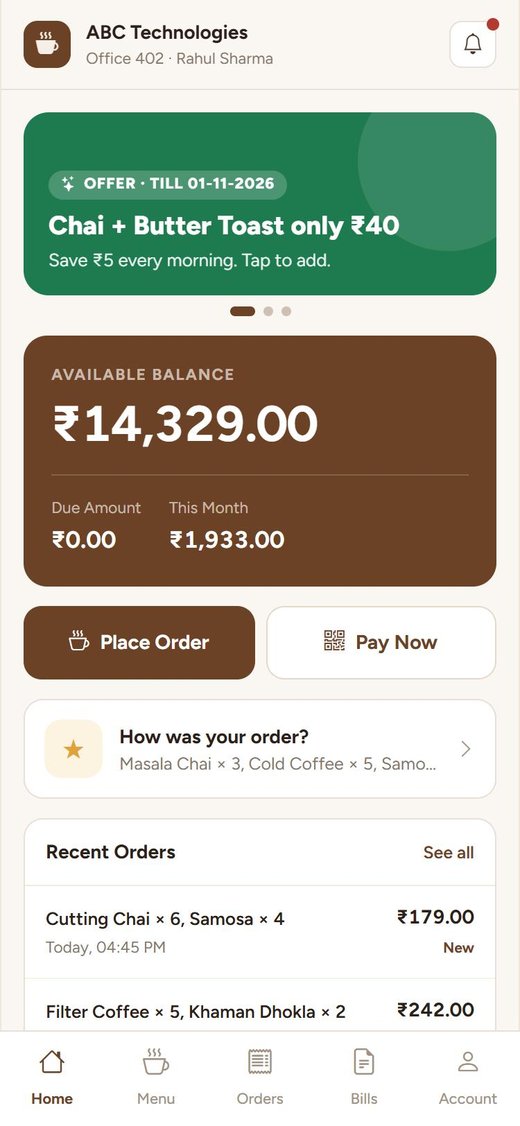
- Home shows your Available Balance (advance with the café), Due Amount (udhaar) and This Month.
- Place Order and Pay Now are right below. Recent orders show their status.
2Place an order
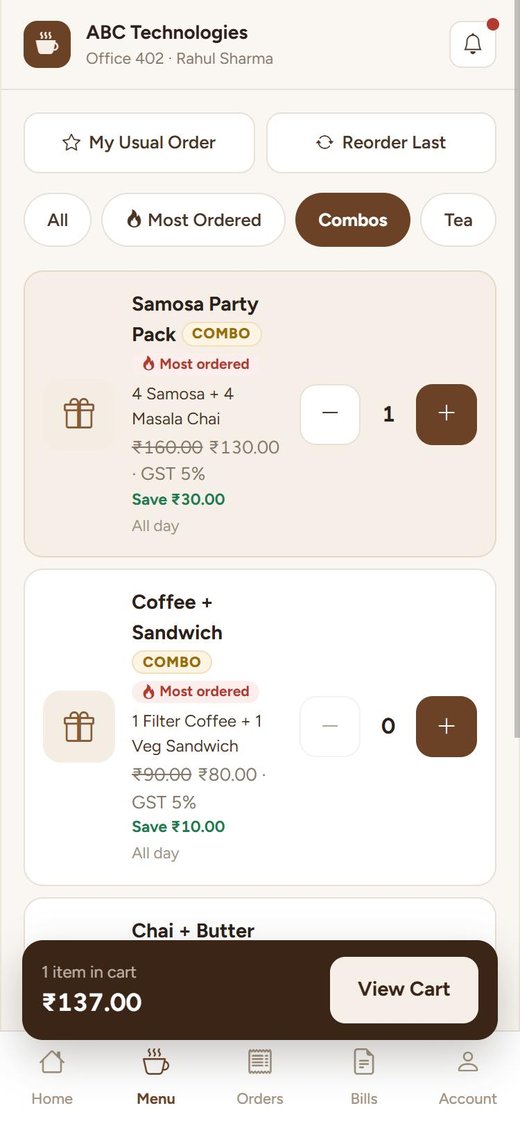
- Menu → tap + on what you want. Use the category chips or the search. My Usual Order and Reorder Last fill the cart in one tap. Your most-ordered items come first.
- Combos (first category) are items together at a special price — the old price is crossed out and the saving is shown. Offers from the café slide at the top of Home; tap one to open it.
- Some items are sold only at certain times (shown under the price).
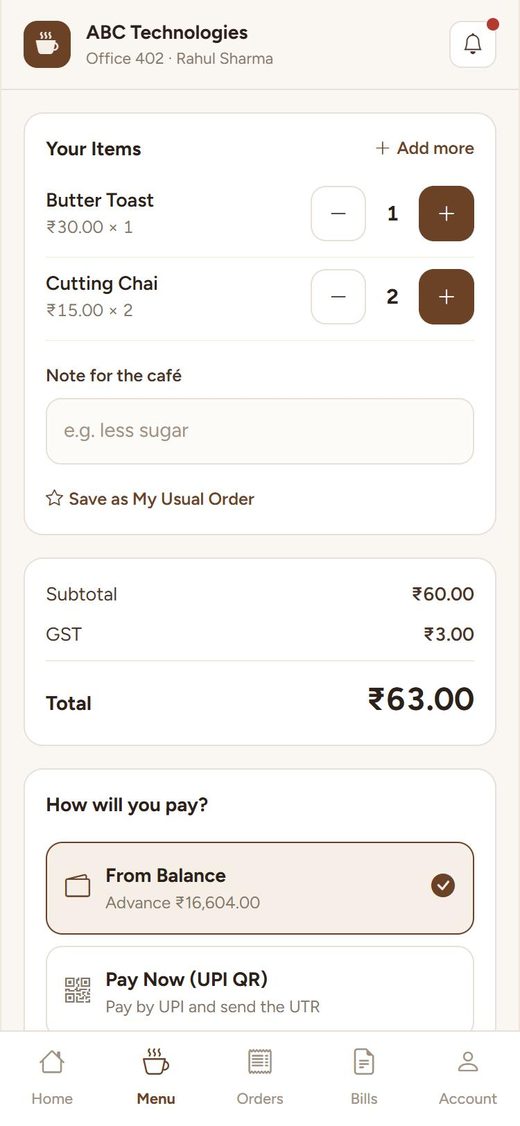
- Open the cart → check items and add a note (e.g. "less sugar, send to meeting room").
- The bill shows GST and the exact total.
- Choose how you pay:
- From Balance — taken from your advance.
- Pay Now (UPI QR) — pay by UPI after ordering.
- Udhaar — added to the month-end bill (only if the café allows credit for your office).
- Place Order. The café gets it at once.
3Track and rate your order
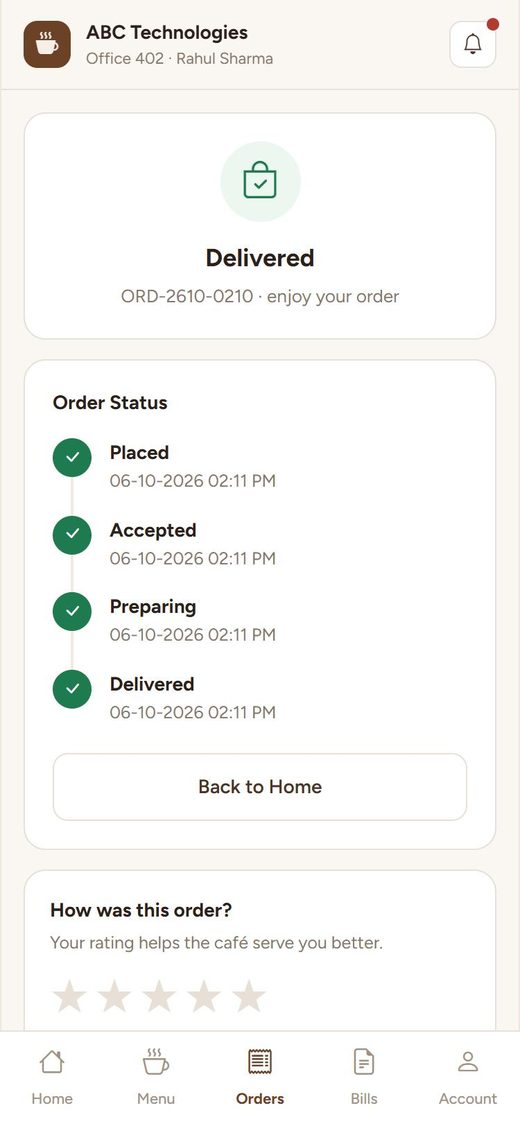
The order page shows Placed → Accepted → Preparing → Delivered with times. It updates by itself, and you get a notification at each step.
After delivery, rate the order: tap 1 to 5 stars, pick quick tags (Tasty, On time, Late, Cold …), add a comment if you like → Submit Rating. You can change it until the café replies. The café's reply shows on the same page.
View Invoice opens the GST invoice / cash bill as PDF; share it from there.
4Pay by UPI
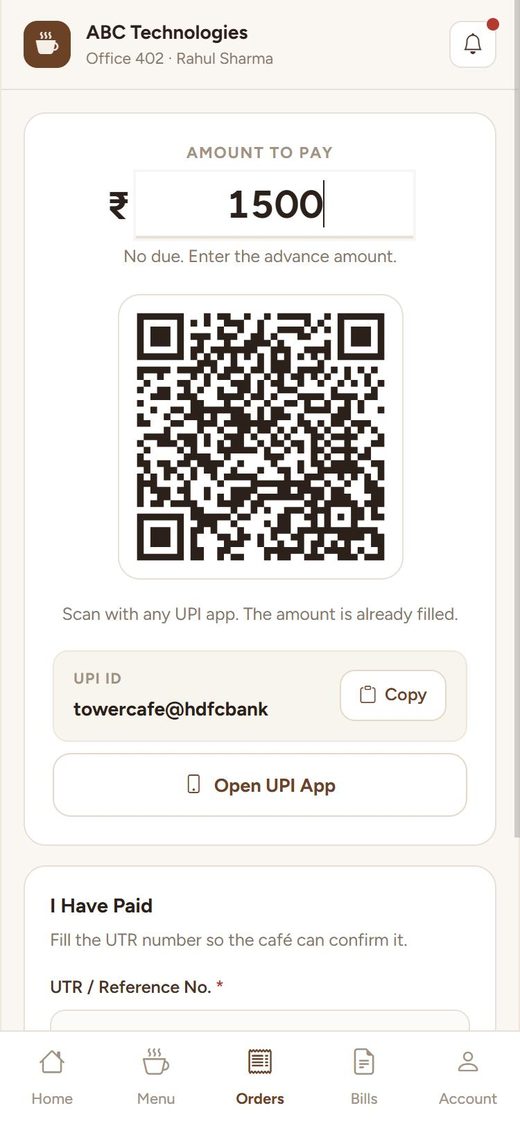
- Pay Now (Home). For a due, the amount is filled; for advance, type the amount.
- Scan the QR with any UPI app (the amount is already in it), or tap Open UPI App on the phone.
- After paying, fill I Have Paid: the UTR / reference number from your UPI app (12 digits) and, if asked, a screenshot → send.
- The café checks its bank and confirms. Your balance is updated and you get a receipt. Until then Home shows "payment waiting for café confirmation".
5Ledger (statement)
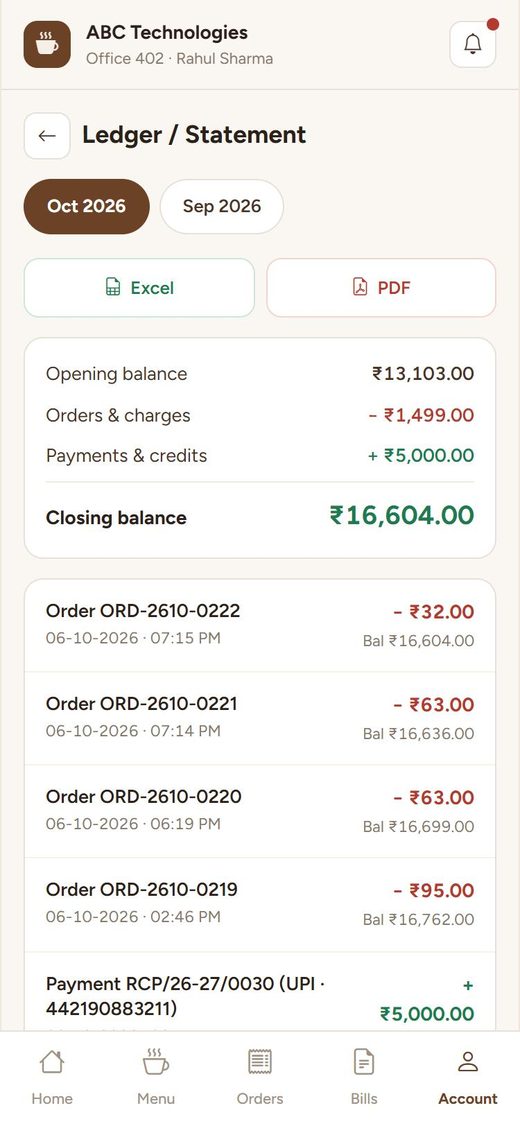
Account → Ledger / Statement (office admin). Pick the month: opening balance, orders (−), payments (+) and the closing balance, with the running balance after every entry.
Excel / PDF buttons download it for your accounts team.
6Monthly bills and invoices
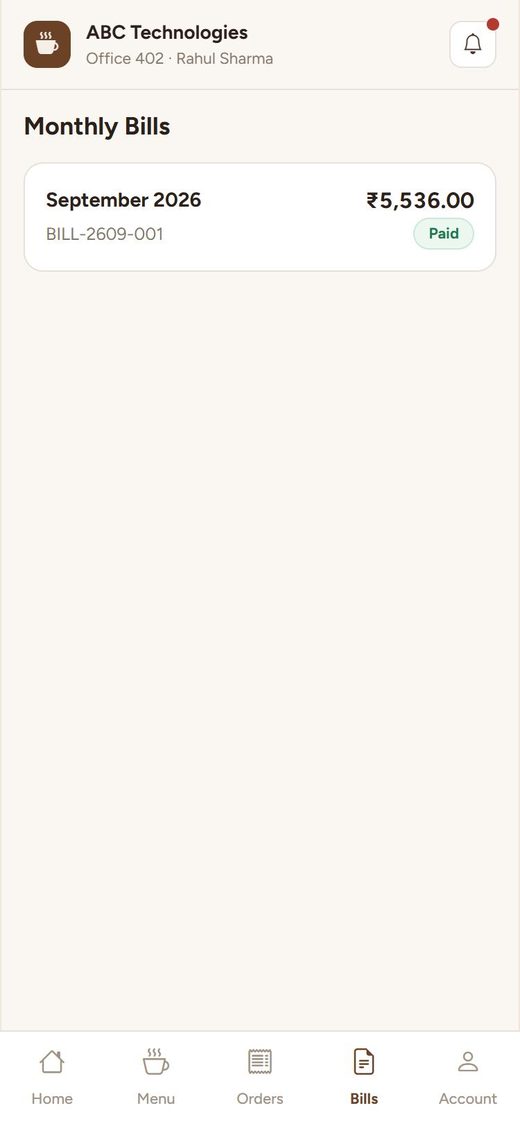
At month end the café makes one monthly bill for your office: all orders, GST, advance used and the final due. You get a notification (and email / WhatsApp if set).
- Bills tab → open the month → Pay Now for the due, or PDF to download.
- Account → My Invoices: the invoice of every order.
7Daily Orders
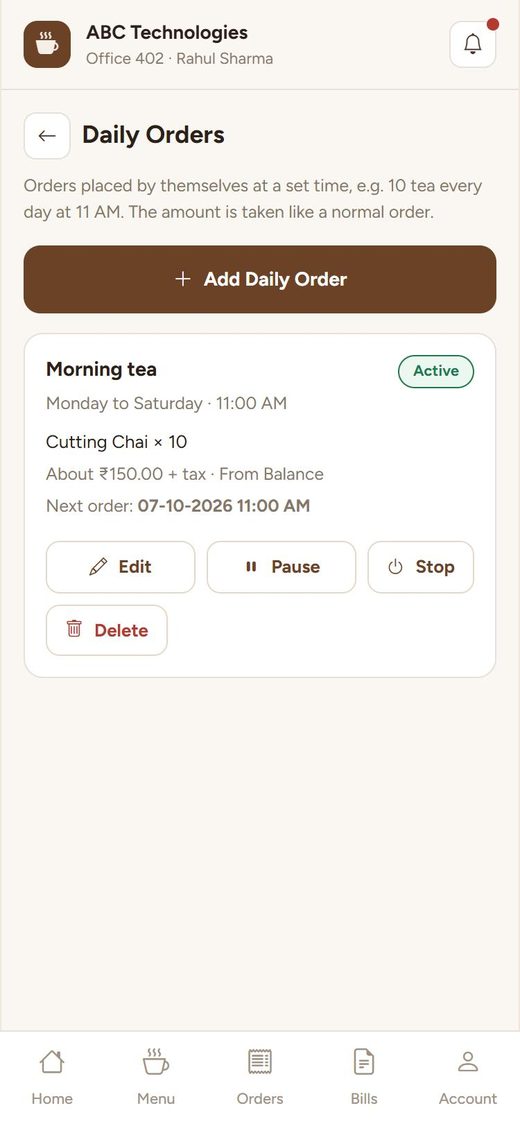
Order the same things every day? Set it once — for example "10 cutting chai, Monday to Saturday, 11 AM" — and the café gets the order by itself at that time.
- Account → Daily Orders → Add Daily Order.
- Name, items, days, time, start date and how to pay → Save. The next order time is shown.
- Office closed for some days? Pause till a date. Stop or Delete any time.
- If there is not enough balance, the order is not placed and you get a notification.
8Employees and their limits (office admin)
- Account → My Employees → Add Employee: name, mobile, department.
- Set a daily and / or monthly limit in ₹. Orders above the limit are stopped. Leave empty for no limit.
- The list shows how much each employee spent this month. Make an employee inactive to stop their orders.
Employee logins are made by the café — ask them.
9Questions
- "Not enough balance" when ordering.
- Your advance is used up and udhaar is not allowed. Choose Pay Now, or add advance from Pay Now on Home.
- "Credit limit" message.
- Your due has reached the limit the café set. Please pay the due first.
- My payment is still "waiting".
- The café confirms after checking its bank, usually the same day. Call the café if it takes longer.
- Forgot password?
- Use "Forgot Password?" on the sign-in page, use Mobile OTP if it is on, or call the café.