Admin Guide
For the café owner and manager: orders, offices, payments, bills, reports and settings. Sign in at https://www.cafe.sharenow.live/login with your admin username and password.
1Dashboard
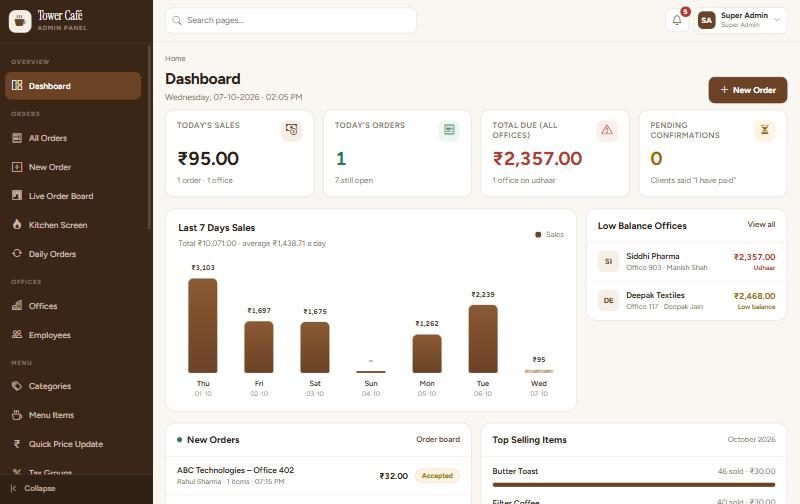
The first page after sign in. It shows today's sales, orders still open, total due (udhaar of all offices) and pending confirmations (offices who said "I have paid").
- Tap any card to open the full list behind it.
- Low Balance Offices on the right: call or WhatsApp them to add advance.
- Use the search box at the top to jump to any page (type "bills", "tally", "staff" …).
2Orders and the Live Order Board
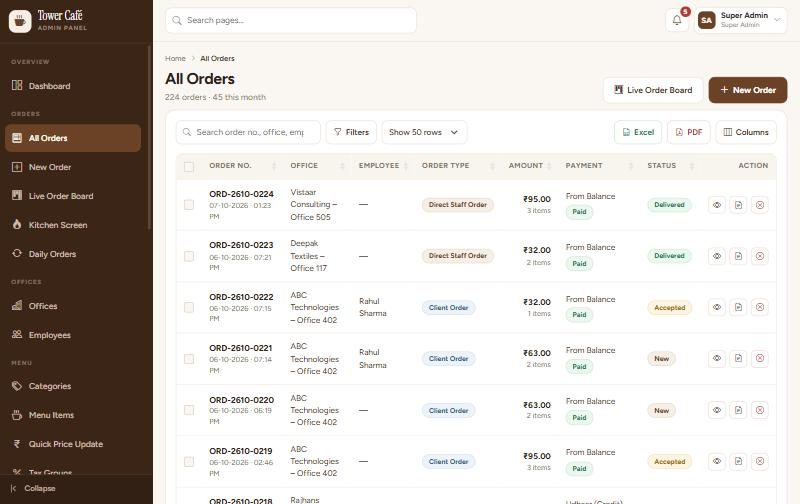
Orders → All Orders lists every order with search, filters, Excel / PDF and 50 to "All" rows per page. The eye button opens the order (items, tax, invoice, payment, rating).
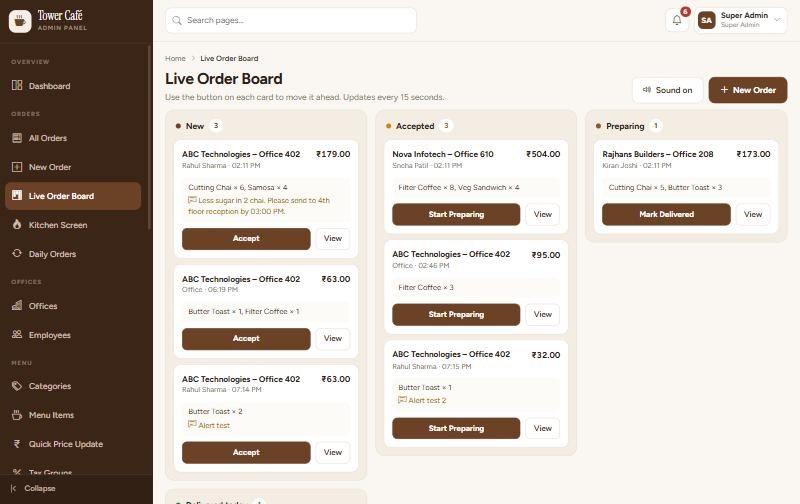
Live Order Board
New orders come in on the left. Move each order ahead with one button:
- Accept → the office sees "Accepted".
- Start Preparing → "Preparing".
- Mark Delivered → done. The office can now rate the order.
Cancel an order
Open the order → Cancel → write the reason. The amount goes back to the office balance automatically. Orders of a locked month cannot be cancelled.
3Taking an order yourself (phone / counter)
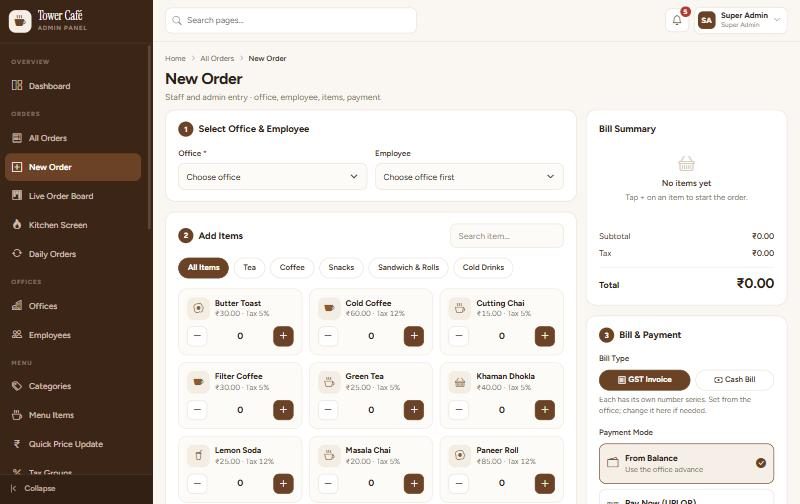
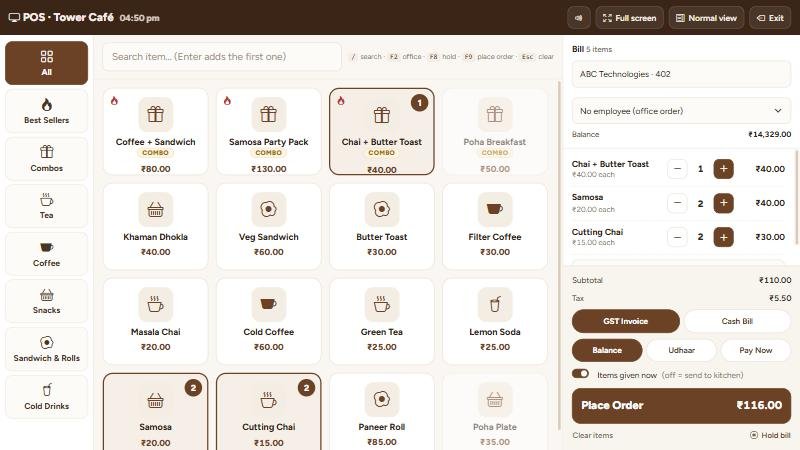
- Orders → New Order.
- Choose the office (and employee, if any). Its balance and credit limit show at once.
- Tap + on items. The Bill Summary on the right shows tax and total.
- Choose GST Invoice or Cash Bill (each has its own number series) and the payment: From Balance, Pay Now or Udhaar.
- Save. The invoice is made and the office ledger is updated.
4Kitchen Screen and printing
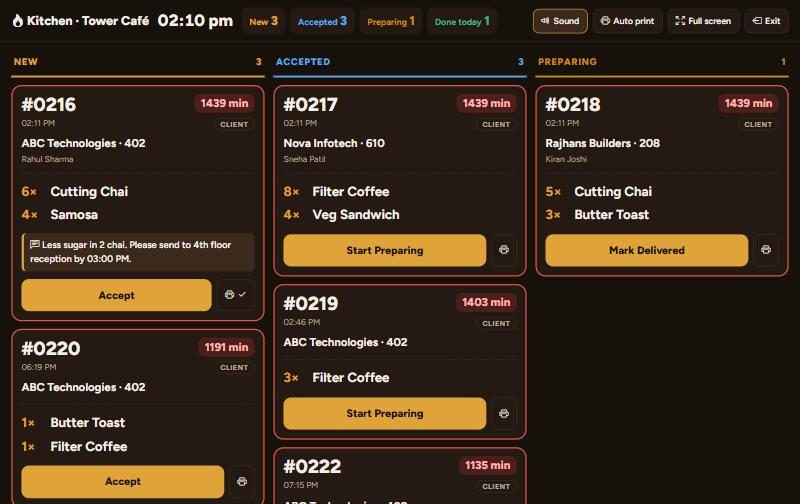
Orders → Kitchen Screen is a big dark screen for a TV or tablet in the kitchen. Big order numbers, items and notes; the minutes turn red when an order is late.
- Press Full screen. Leave it open; it refreshes every few seconds and rings on new orders.
- Tap Accept / Start Preparing / Mark Delivered on the card.
- The printer button prints the Kitchen Ticket (no prices). Auto print prints every new order by itself.
5Offices, advance and udhaar
Offices shows each office with its balance (green = advance with you, red = due / udhaar), credit limit and buttons to call or WhatsApp.
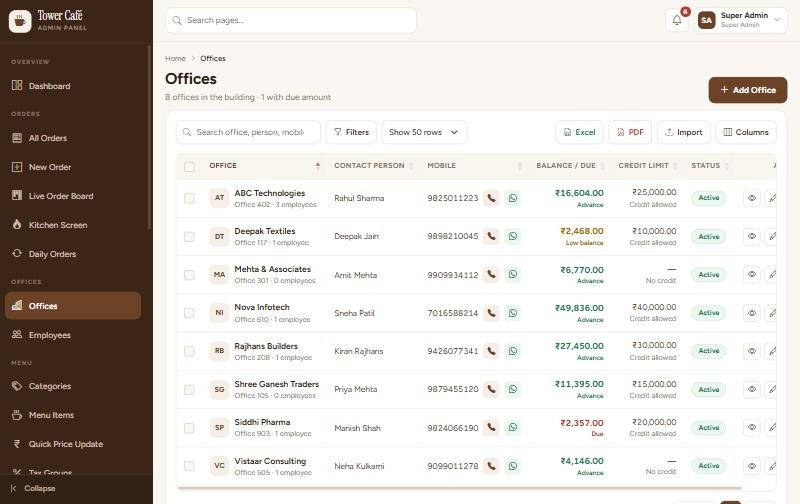
Add an office
- Add Office → name, office number, contact person, 10-digit mobile.
- Opening balance: plus = advance already paid, minus = old due (e.g. -2500).
- Credit allowed and credit limit: how much udhaar is allowed. Choose "block" to stop orders above the limit.
- Give a username and password so the office can order from the portal or app.
Many offices at once: Import → download the sample Excel → fill → upload.
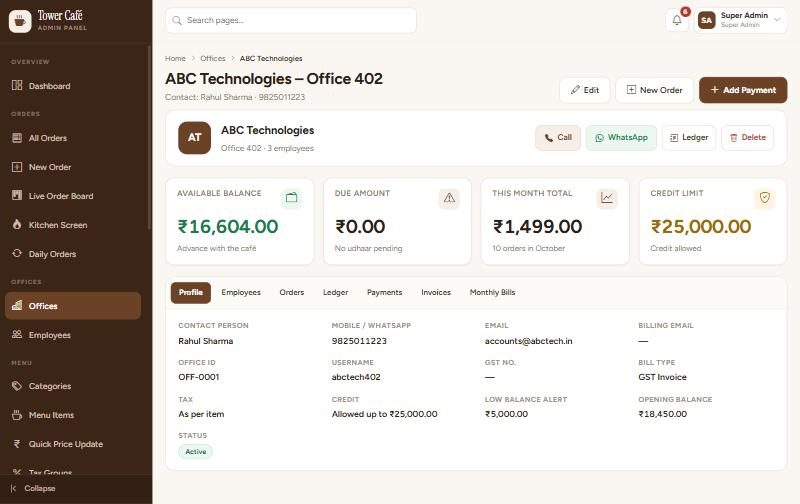
Office page
Opens with balance, due, this month and credit limit, and tabs for employees, orders, ledger, payments, invoices and bills. Add Payment and New Order are at the top.
6Payments
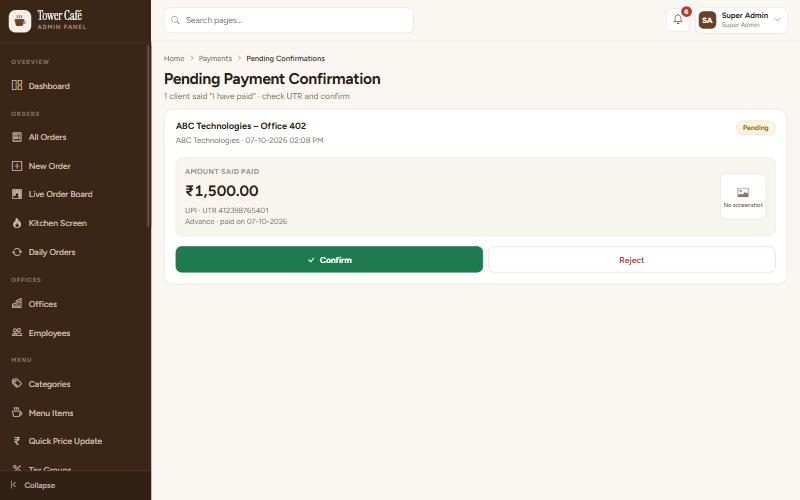
When an office says "I have paid" (UPI)
- Money → Pending Confirmations (the dashboard card shows how many).
- Check the amount and UTR number in your bank / UPI app.
- Money received → Confirm. A receipt number is made and the office balance goes up.
- Not received → Reject and write why. The office sees the reason.
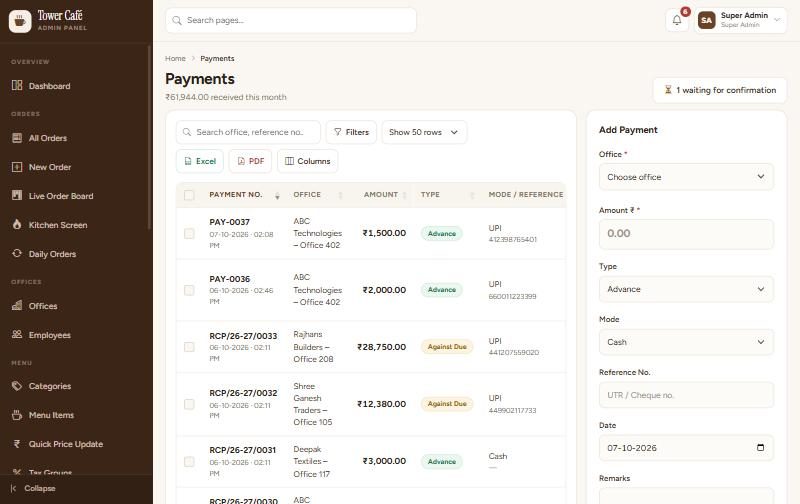
Cash, cheque or bank payment received at the counter
- Money → Payments → the Add Payment box on the right.
- Office, amount, type (Advance or Against Due), mode, reference no., date → Save.
- The receipt can be downloaded as PDF or sent on WhatsApp from the list.
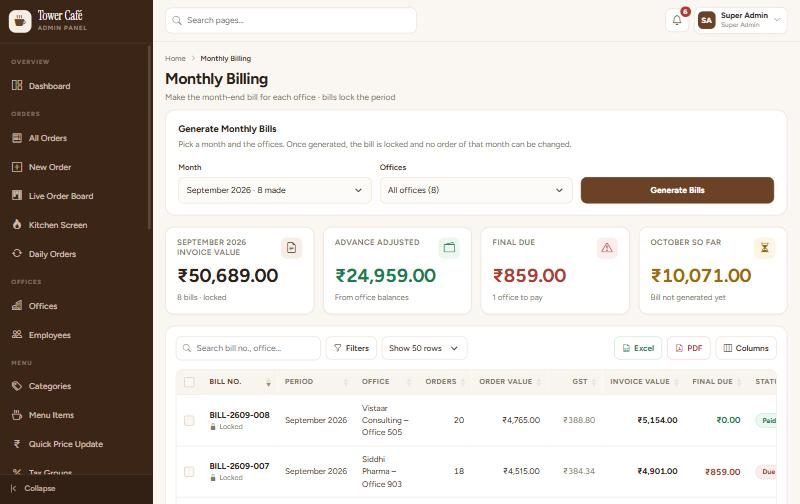
7Month-end bills
- Money → Monthly Billing.
- Pick the month (and offices, or all) → Generate Bills. If "Make monthly bills automatically" is on (Settings → Billing), this happens by itself the day after the month ends.
- Each bill shows orders, invoice value, advance adjusted and final due. Send it by WhatsApp or email from the list.
- After bills, the month is locked: no order or payment of that month can change. Need a correction? Use a ledger adjustment in the open month.
8Reports
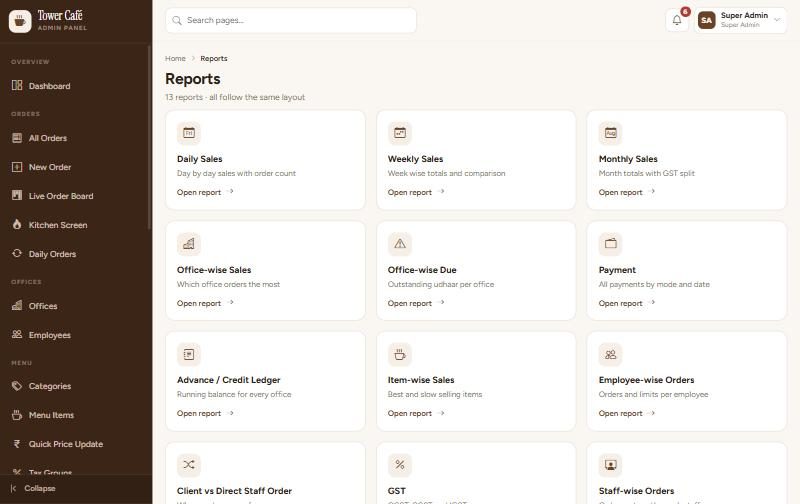
Insights → Reports has 13 reports: daily / weekly / monthly sales, office-wise sales and due, payments, ledger, item-wise, employee-wise, client vs counter, GST, staff-wise and cancelled orders. Each has date filters and Excel / PDF buttons.
9Daily Orders
An order that is placed by itself every day at a set time — for example "10 cutting chai, Monday to Saturday, 11 AM". It becomes a normal order: staff get the alert, the ledger and invoice are made.
- Orders → Daily Orders → Add Daily Order.
- Office, name, items, days, time, start date, payment → Save. The next order time is shown.
- Office closed for a few days? Open it → Pause Till a date. Stop it with Turn Off.
- If an order could not be placed (no balance, credit limit), you and the office get a notification with the reason.
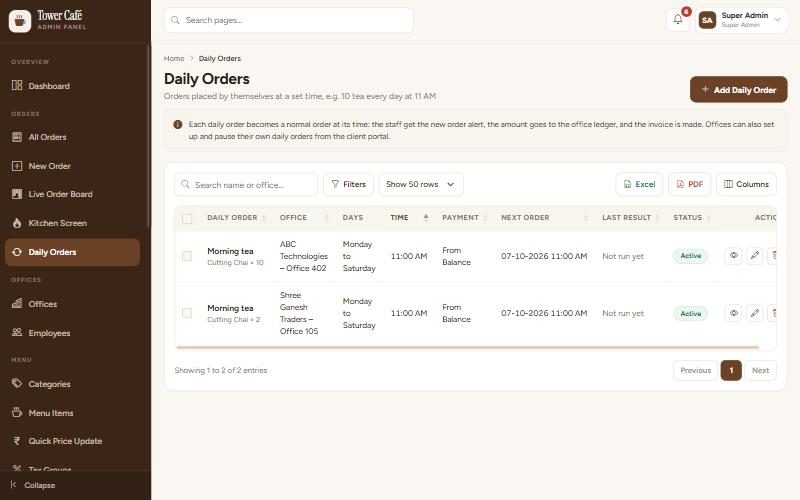
Offices can also add and pause their own daily orders from their portal or app.
10Order Feedback
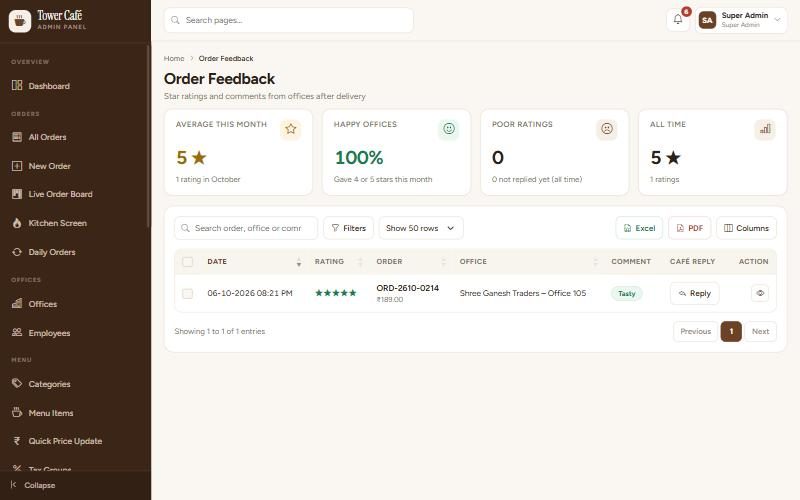
After delivery, offices rate the order with 1 to 5 stars, quick tags (Tasty, Late, Cold …) and a comment. 1–2 star ratings ring your bell.
- Insights → Order Feedback: average this month, % happy offices, poor ratings not replied.
- Filter 1–2 stars and Not replied → Reply. The office gets your reply as a notification.
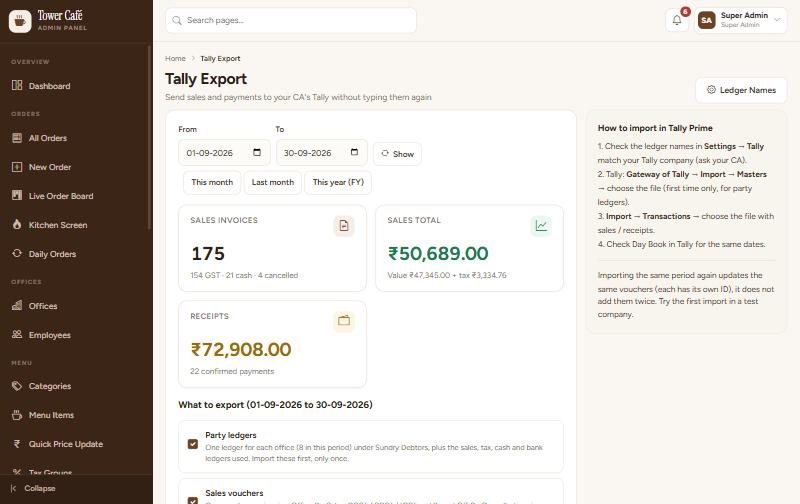
11Tally Export
- First time: Settings → Tally — type the ledger names exactly as in your Tally company (ask your CA).
- Money → Tally Export → choose the month (Last month is usual) → check the totals.
- Tick Party ledgers (first time only), Sales vouchers, Receipt vouchers → Download Tally XML.
- In Tally: Gateway of Tally → Import → Masters (party ledgers) and Import → Transactions (vouchers).
12Settings, staff and backups
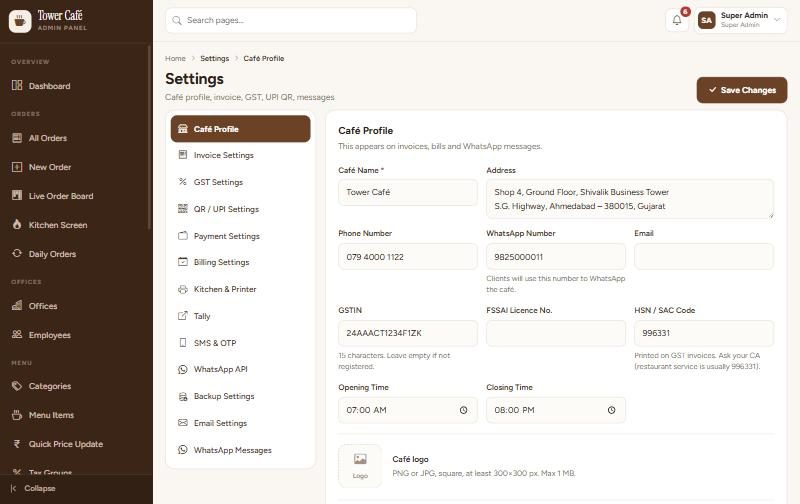
System → Settings has one page per topic: café profile, invoice, GST, UPI QR, payment rules, billing, kitchen & printer, Tally, SMS & OTP, WhatsApp API, backup, email and WhatsApp messages. Change and press Save Changes.
- Staff: add counter staff logins (Staff Panel) or managers (Admin Panel). Roles & Permissions decide what each one can see and do.
- Outlets: only if you open a second café. Then each office and staff member belongs to one outlet, and you pick the outlet in the top bar.
- Backups: a copy is made every night. Download one each week and keep it outside the server.
- Activity Log and Login History: who changed what, and who signed in.
13Every day / every month
Every day
- Morning: Pending Confirmations — confirm yesterday's UPI payments.
- Keep the Live Order Board or Kitchen Screen open during café hours.
- Evening: look at Low Balance Offices on the dashboard and remind them.
Every month (first week)
- Check Monthly Billing (made automatically) and send bills on WhatsApp / email.
- Send due reminders (Insights → WhatsApp Log, if the WhatsApp API is on).
- Tally Export of last month to your CA, and the GST report.
- An office says its balance is wrong.
- Open the office → Ledger tab. Every order, payment and adjustment is listed with the running balance. Download it as PDF and share.
- A wrong amount was entered.
- Cancel the order (amount goes back) or use Office Ledger → Adjustment with a reason. Nothing is deleted, so the record stays clean.
- Someone forgot the password.
- Staff: System → Staff → Edit → new password. Office: Offices → Edit → new password. Or "Forgot Password?" on the sign-in page (needs email set up).
14Combos and Offers
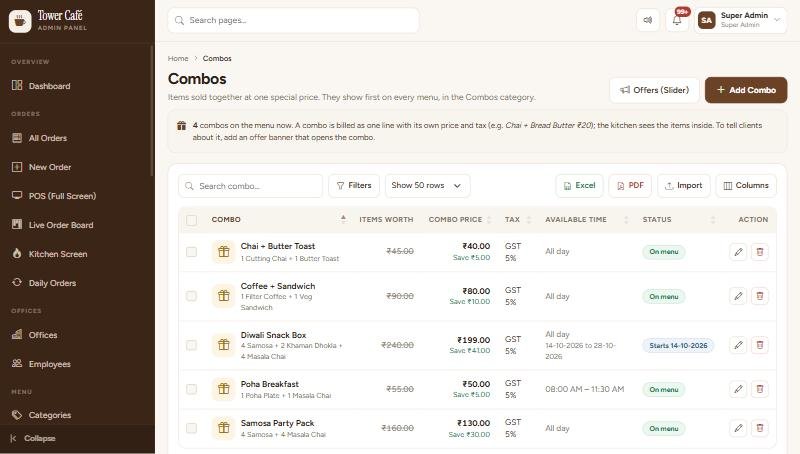
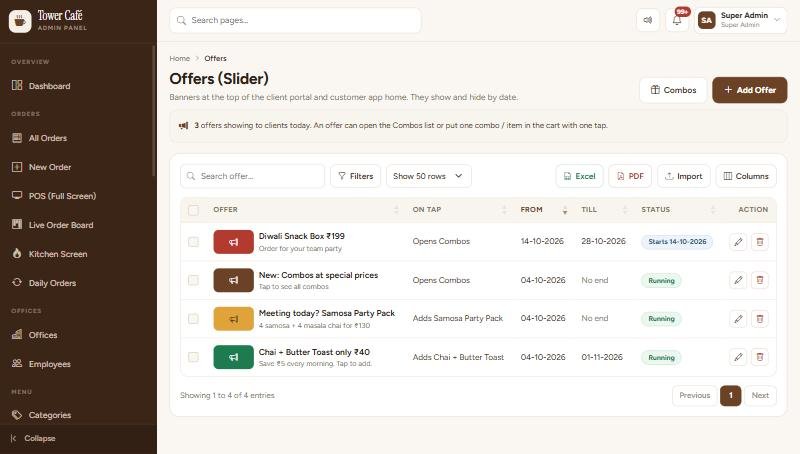
Combo = two or more items at one special price, e.g. Chai + Bread Butter ₹20 flat. Offer = a banner that slides at the top of the client portal and customer app home.
- Menu → Combos → Add Combo: name, the items inside (with quantity), the combo price and tax. The right side shows how much the client saves. Set First Day / Last Day for a festival combo; it leaves the menu by itself.
- The combo shows first on every menu, in the Combos category. It is billed as one line; the kitchen screen and ticket show the items inside.
- Menu → Offers (Slider) → Add Offer: heading, small line, picture or colour, first and last day. On tap can open the Combos list or put one combo in the client's cart.
- Offers hide by themselves after the last day. Turn one off any time from the list.